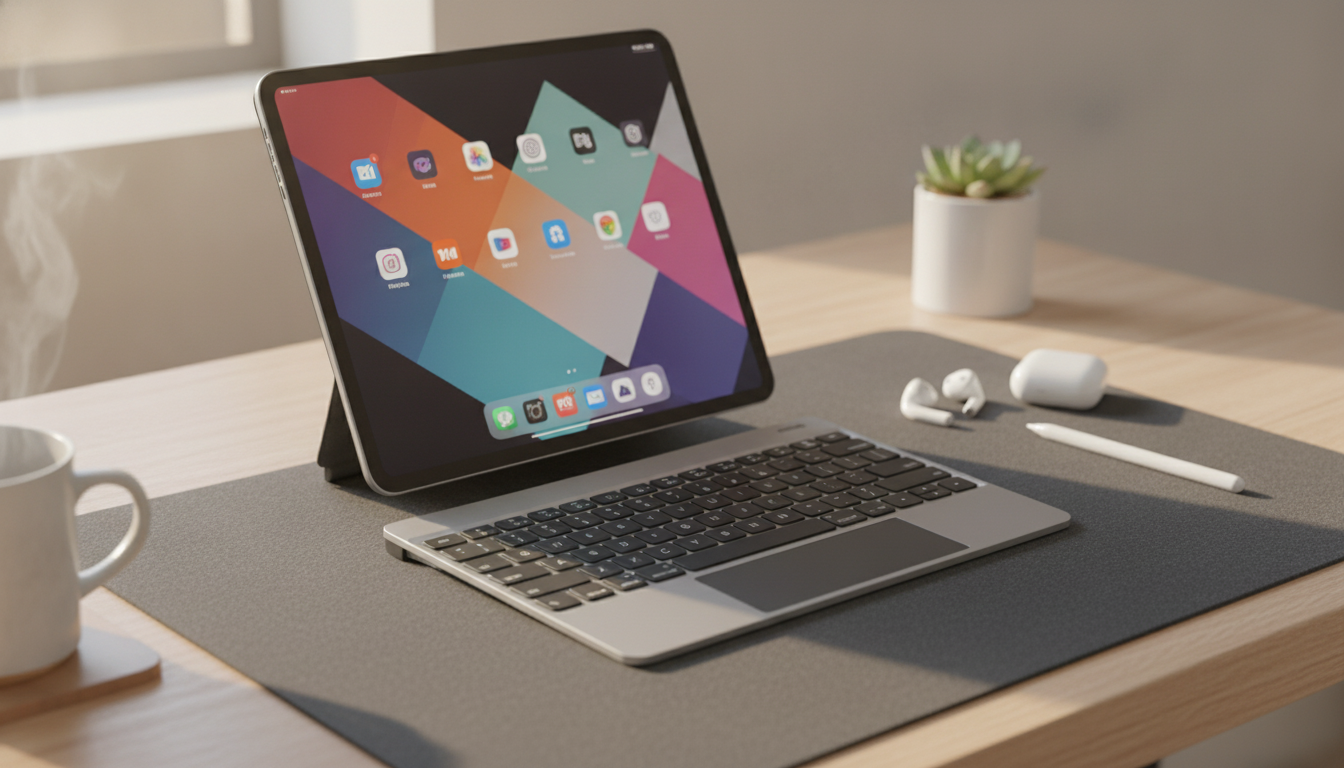
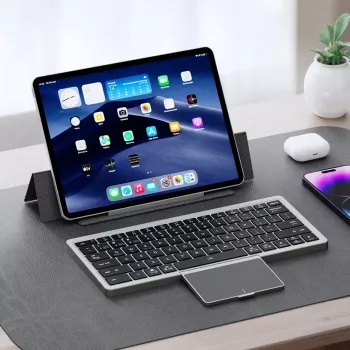
A compact Bluetooth keyboard with an integrated touch pad can make an iPad feel far closer to a laptop—without giving up the flexibility of a tablet. Whether you’re writing emails, building notes for class, or juggling multiple apps, a keyboard-and-pointer combo reduces screen tapping and helps you move faster. Below is a practical guide to what matters most, how to connect a touch pad keyboard to iPad Pro and iPad Air, and how to keep the experience smooth day to day.
What This Keyboard Adds to a Tablet Workflow
- Touch pad navigation: Great for cursor-based tasks like editing documents, selecting text precisely, and working in spreadsheets without constant long-presses.
- Faster typing: A physical keyboard typically beats the on-screen keyboard for emails, journaling, school assignments, and chat-heavy work.
- Better multitasking control: Pointer input can make Split View and Slide Over feel more manageable when switching between apps and fields.
- More comfortable posture: Paired with a stand or case, you can type with your hands on the keyboard instead of hovering over the screen.
Key Features to Pay Attention To
- Bluetooth stability: Consistent pairing and low input lag matter more than almost any other spec. If keystrokes arrive late, everything feels slower.
- Touch pad gestures: Two-finger scroll is the baseline. Beyond that, gesture support can depend on iPadOS settings and how the keyboard presents itself to the system.
- Key layout: Look for a familiar modifier setup (Command/Option/Control) so iPad shortcuts feel natural.
- Battery and charging: Check how it powers (rechargeable or replaceable batteries), whether it auto-sleeps, and how quickly it wakes.
- Build and portability: A thin, rigid body travels better, and a solid base reduces wobble when typing on a small desk or tray table.
Compatibility Checklist (Before Buying)
- Confirm your tablet model: iPad Pro and iPad Air generally pair well with Bluetooth keyboards, but physical fit (if you use a case) and preferred key spacing vary.
- Check iPadOS version: Newer iPadOS versions tend to deliver smoother pointer behavior and better trackpad-style controls.
- Decide how you’ll use it: Desk-only use can tolerate more weight; travel and commuting benefit from slimmer builds and quick wake.
- Plan ergonomics: If the keyboard doesn’t include a built-in stand, a separate stand can raise the screen and reduce neck strain.
Quick Compatibility and Fit Guide
| Scenario |
What to Verify |
Why It Matters |
| iPad Pro (various sizes) |
Bluetooth pairing + comfortable key spacing |
Ensures stable input and fewer typing errors |
| iPad Air |
Pointer settings and gesture controls |
Improves navigation without constant screen taps |
| Other tablets |
Bluetooth version + OS pointer support |
Affects responsiveness and available gestures |
| Using a case |
Clearance and alignment with stand/cover |
Prevents wobble and awkward viewing angles |
Connecting and Setting Up on iPad (Step by Step)
- Power the keyboard: Charge it first (if rechargeable) or install fresh batteries (if required). Low power can cause pairing failures or random drops.
- Open Bluetooth settings: On your iPad, go to Settings → Bluetooth and turn Bluetooth on.
- Enter pairing mode: Use the keyboard’s Bluetooth button or the pairing key combo (varies by model). A blinking indicator usually confirms pairing mode.
- Select the device: Tap the keyboard name under “Other Devices.”
- Complete pairing: If a code appears, type it on the keyboard and press Enter/Return.
- Adjust pointer behavior: Go to Settings → Accessibility → Pointer Control to fine-tune pointer speed and related options.
- Test the basics: Open Notes and try typing, two-finger scrolling, and click-and-drag selection.
For Apple’s official steps on pairing Bluetooth devices and using a pointing device with iPad, see Apple Support: Connect Bluetooth devices and Apple Support: Use a Bluetooth mouse or trackpad with iPad.
Using the Touch Pad Effectively
- Two-finger scroll: Ideal for long web pages, PDFs, and documents where frequent scrolling would otherwise mean constant swipes on glass.
- Tap to click (if supported): Helpful in quiet spaces because it reduces louder physical clicks.
- Click-and-drag: Useful for selecting text blocks, dragging sliders, rearranging items, or moving files in supported apps.
- Practice multitasking gestures: Spend a few minutes learning what works reliably on your iPadOS version—especially app switching and returning to Home.
- Mix touch pad + screen: For precision, place the cursor with the touch pad; for quick edits (like tapping a checkbox), the screen is still the fastest option.
Comfort, Noise, and Daily Portability
Common Issues and Quick Fixes
Product Options Available Now
FAQ
Does a Bluetooth keyboard with a touch pad work with iPad Pro and iPad Air?
Yes—iPad Pro and iPad Air typically pair smoothly over Bluetooth. Pointer and gesture behavior depends on your iPadOS version and your settings, especially under Accessibility → Pointer Control.
How do scrolling and gestures work on the touch pad?
Two-finger scrolling is the most common method and usually feels natural for web pages and documents. Additional gestures can vary, and they may require enabling or adjusting pointer/trackpad-related settings on iPadOS.
What should be checked if the keyboard keeps disconnecting?
Check battery level first, then try forgetting the device and pairing again. Also reduce wireless interference, disconnect unused Bluetooth devices, and make sure iPadOS is up to date.
Recommended for you




Leave a comment